


Home / Install the app
Install the Wanderlust app
Free, no Play Store or App Store needed: the app installs from our website in a few seconds and takes up very little space.
Why install the app?
The app is already installed on this device: you are using it right now.
Your phone is ready
Install the app in one tap, without going through an app store.
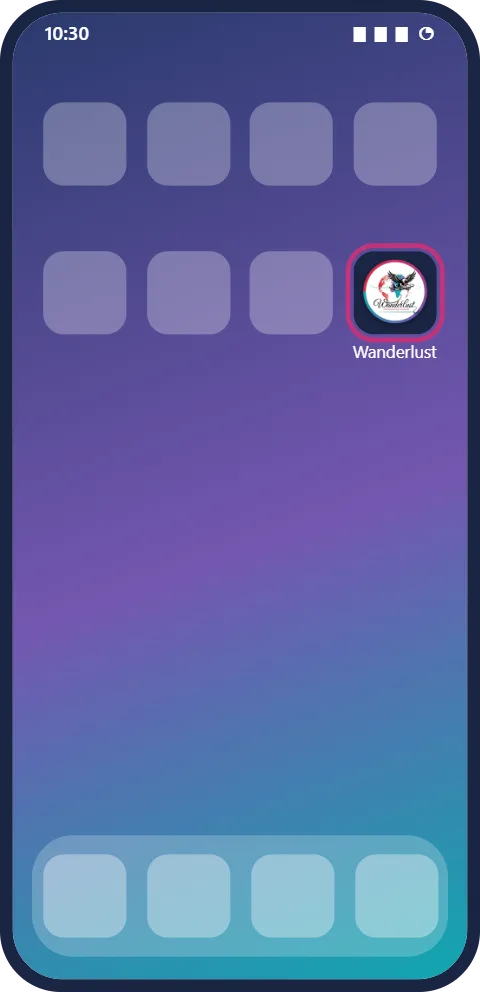
- Your file in one tap: track your application and upload your documents from the Wanderlust icon.
- Notifications whenever the status of your file changes.
- Offline: pages you have already viewed stay readable without internet.
- Very little data: the app keeps the site files on your phone instead of downloading them again.
On Android (Chrome)
Open gowanderlustdrc.com in Chrome, then:
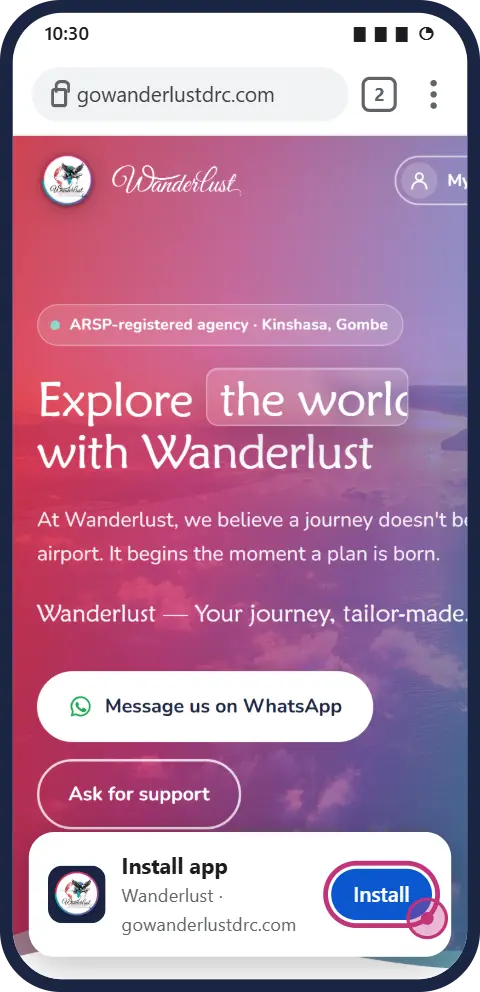
Tap “Install”
A banner or an “Install” button often appears at the bottom of the screen: tap it.
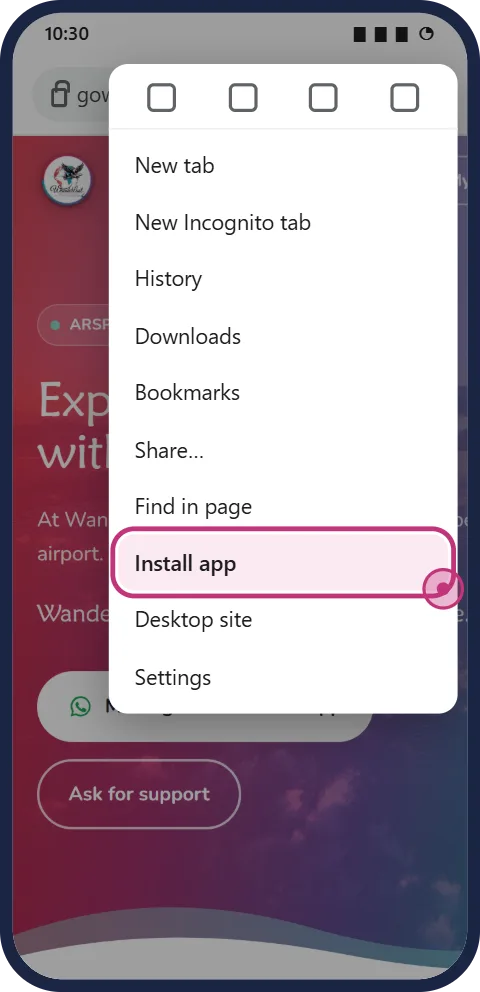
Or use the ⋮ menu
Otherwise, tap the three dots at the top right, then “Install app” (or “Add to Home screen”, depending on your Chrome version).
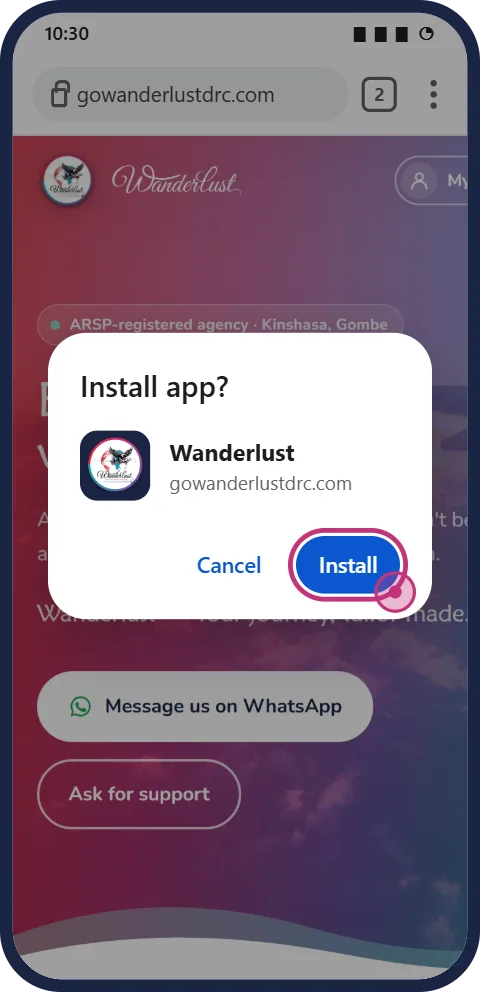
Confirm
Tap “Install”: the Wanderlust icon appears on your home screen.
On iPhone or iPad (Safari)
Open gowanderlustdrc.com in Safari: adding to the Home Screen does not work from Chrome, WhatsApp, Facebook or Instagram.
You are reading this page inside an app (WhatsApp, Facebook, Instagram…) or another browser: open it in Safari (⋯ menu or share button, then “Open in Safari”) to install the app.
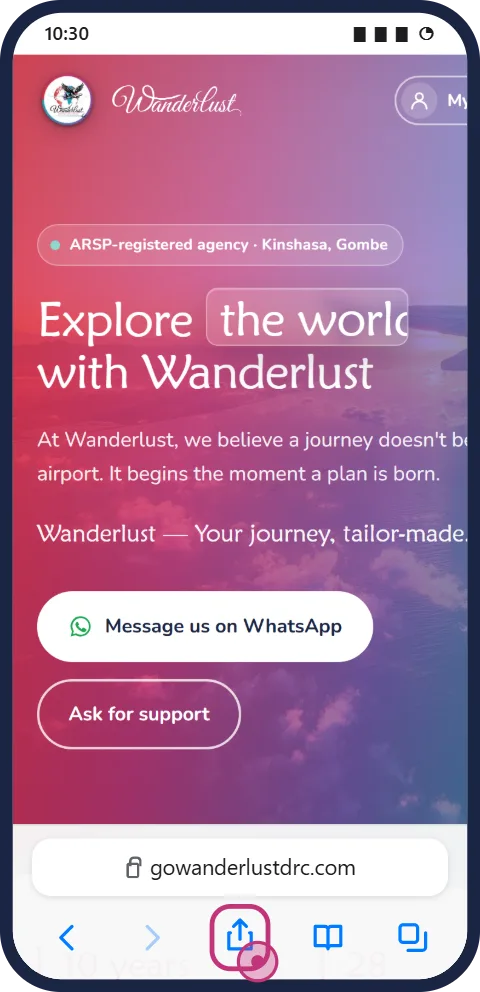
Tap the Share button
It is the square with an upward arrow, at the bottom of the screen (at the top on iPad).
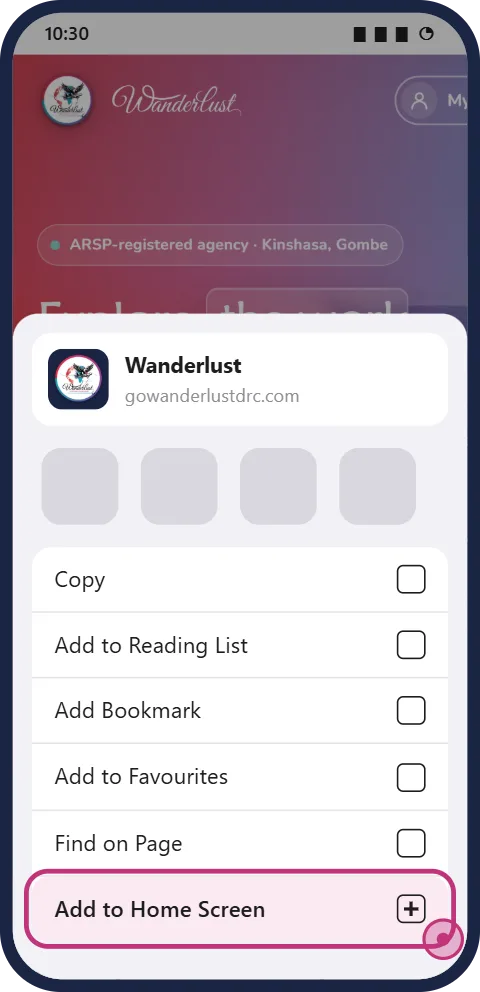
“Add to Home Screen”
Scroll down the list and tap “Add to Home Screen”.
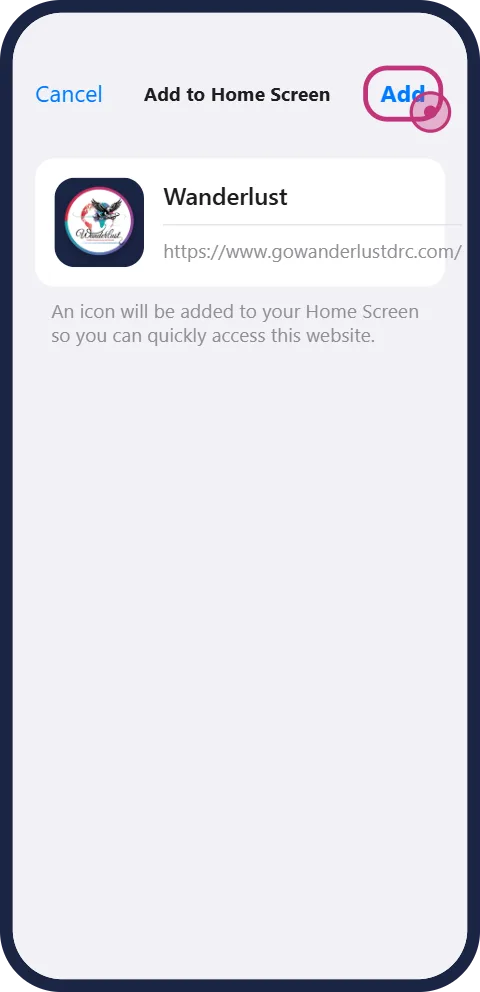
Tap “Add”
At the top right: the Wanderlust icon joins your apps.
Notifications on iPhone: they only work from iOS 16.4 onwards, and only when you open Wanderlust from its Home Screen icon.
Turn on notifications
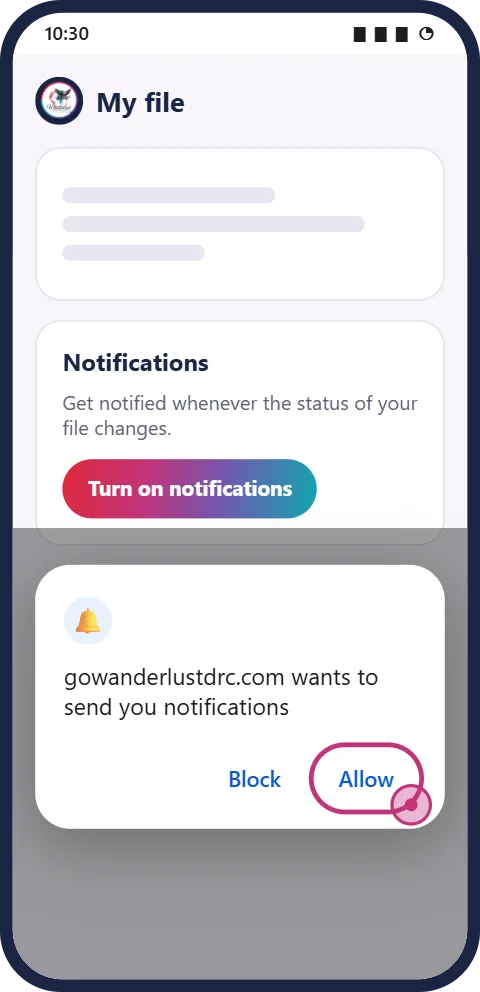
- Open the app, tap “My file” and sign in.
- In your client area, tap “Turn on notifications”.
- Accept the permission requested by your phone (“Allow”).
You will be notified as soon as the status of your file changes. You can turn them off at any time in your phone settings.
Uninstall
Long-press the Wanderlust icon, then “Uninstall” (Android) or “Remove App” (iPhone): your file remains available on the website.
Trouble installing?
Write to us: we will guide you step by step.